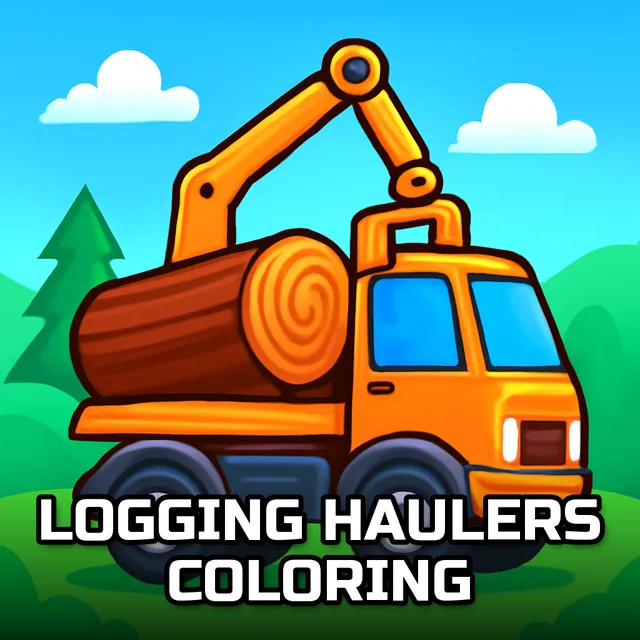
Logging Haulers Coloring
Instructions:
Move over screen to colorDescription
Logging Haulers Coloring Review
No timers, no fail states, just eight line drawings of hulking logging trucks and forestry gear waiting for some color. This one strips things down to basics: pick a picture, pick a shade, fill it in. It's the kind of low-stakes activity that sounds almost too simple on paper, but there's something weirdly satisfying about watching a flat black-and-white sketch of a timber hauler turn into something loud and personal. You're not being graded here. You're just messing around with a palette until something clicks visually, and honestly, that's the whole appeal.
Key Combinations
- Move your mouse across the canvas to apply whatever color is currently selected.
- Click a new shade from the palette to switch colors on the fly, mid-drawing if you want.
- Use the erase option to undo a color choice without wiping the whole picture.
- On touchscreens, swap the mouse for your finger and drag across the lines the same way.
- Save your finished truck once you're happy with it, or send it to print if you'd rather have a paper copy.
Pro-Level Advice
- Start with the biggest sections of the truck body first, then work down into smaller details like wheels and rivets.
- Try picking one or two accent colors before you touch the rest of the palette, it keeps the final image from looking scattered.
- Zoom in mentally on the logging equipment parts, cranes, chains, stacked logs, they read better with contrasting tones rather than flat repeats of the truck color.
- If a color mistake happens, use the erase tool right away instead of coloring over it, cleaner results come from fixing early.
- Cycle through all eight images instead of sticking to one, each hauler design has different panel shapes that reward different color patterns.
- Save often if you're building toward a specific look, so a stray click doesn't undo your progress.